

AI Product Image Troubleshooting Guide: Fix Common Generator Errors
AI product image troubleshooting is the systematic process of identifying and correcting visual artifacts, distortions, and realism gaps in AI-generated product photography. This guide provides actionable fixes for the most frequent issues ecommerce sellers face, from warped text to unnatural shadows.
Why AI Product Photos Look Fake and How to Fix Them
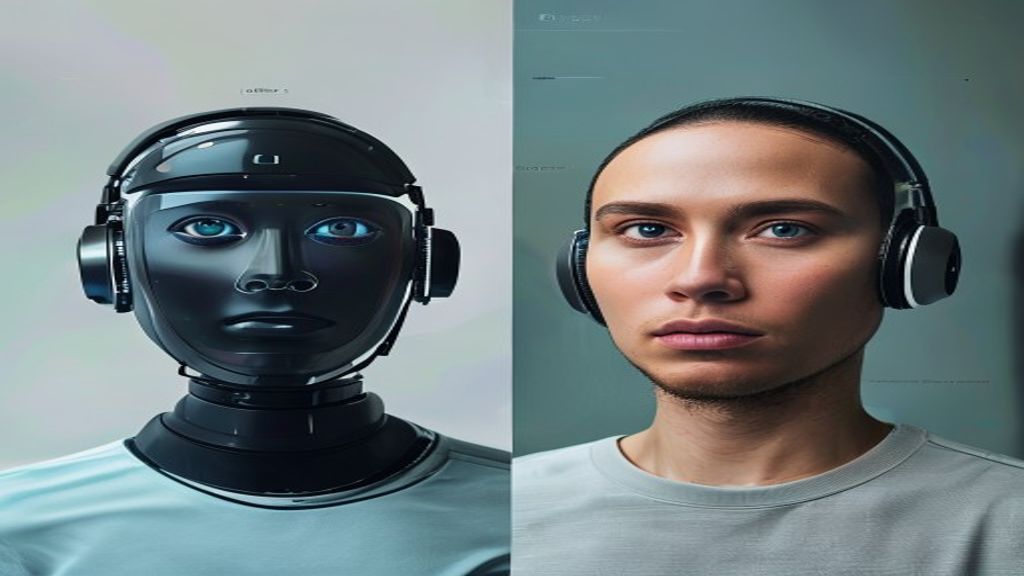
AI product photos look fake primarily because the generator lacks real-world physics understanding, producing plastic-like surfaces, uniform lighting, and zero micro-details. The fix involves prompt engineering for realism and post-generation texture enhancement.
Add Realism Keywords to Your Prompt
Include terms like “macro detail,” “natural lighting,” “slight imperfections,” and “product photography, f/8 aperture.” Avoid generic words like “perfect” or “clean” that trigger synthetic output. For example, replace “a white mug on a table” with “a ceramic white mug with subtle glaze variations on a wooden table, soft window light, shallow depth of field.”
Use Negative Prompts to Remove Plastic Look
Apply negative prompts such as “plastic, render, 3D model, smooth, artificial, overly sharp.” This forces the AI to avoid the common default aesthetic. Tools like Midjourney and DALL-E 3 support negative prompting natively. Test five variations per product to find the most natural result.
Apply Post-Generation Texture Overlays
After generating, use Photoshop or GIMP to overlay subtle noise (0.5–1.5% opacity) and sharpen edges selectively. This breaks the unnaturally smooth surface that screams “AI.” Focus on product edges and reflective areas where fakeness is most visible.
AI Product Image Problems with Hands, Shadows, and Textures
AI product image problems with hands shadows and textures usually stem from the model’s inability to render accurate limb anatomy and consistent light physics. The direct fix is to avoid hand interactions entirely or use compositing techniques.
Eliminate Hand Distortions by Cropping or Clipping
If your product requires a hand holding it, generate the hand separately on a plain background and composite it. Alternatively, crop the image to show only the product and a partial hand (fingers only). This hides the most common errors: extra fingers, twisted wrists, and floating thumbs.
Fix Shadow Direction Mismatches
AI often creates shadows that contradict the light source. Use a shadow adjustment layer in your editor. Identify the main light direction in the image, then paint a soft black layer at 30–50% opacity on the opposite side. Blur it with a 15–25 pixel Gaussian blur to match the original shadow softness.
Correct Texture Bleeding Between Hand and Product
When the product and hand merge textures (e.g., skin pattern appears on a bottle), use the clone stamp tool to remove the texture bleed. Set the tool to 40% hardness and 60% opacity. Sample from a clean area of the product and paint over the merged zone. This takes 2–3 minutes per image.
Fix Distorted Product Images from AI Generators
Fix distorted product images from AI generators by identifying the distortion type—warped geometry, stretched logos, or asymmetrical shapes—and applying targeted correction tools. Most distortions are fixable in under five minutes.
Correct Warped Product Geometry with Perspective Tools
Open the image in an editor with perspective correction (Photoshop, GIMP, or Affinity Photo). Use the “Perspective Warp” tool to drag corners back to true rectangular or cylindrical shapes. For bottles, apply a 5–10° rotation to the neck area if it appears bent. Check symmetry by flipping the image horizontally—if one side looks different, adjust.
Fix Stretched Logos and Text
AI often distorts text into illegible squiggles. Generate the product image without text, then overlay your actual logo using a separate layer. Match the perspective with “Free Transform > Distort.” This guarantees crisp, readable branding. If the original text is essential, use the “Content-Aware Fill” to remove it first.
Repair Asymmetrical Product Features
For products like chairs, lamps, or shoes, asymmetry is common. Select the distorted side using the lasso tool, copy it to a new layer, flip it horizontally, and align it with the correct side. Use a layer mask with a soft brush (0% hardness) to blend the seam. This works for 90% of symmetry errors.
Resolve Lighting and Color Inconsistencies in AI Product Images
Lighting and color inconsistencies occur when the AI applies multiple light sources or mismatched color temperatures. The solution is to standardize the lighting with gradient maps and white balance correction.
Unify Multiple Light Sources into One
Identify the dominant light source (usually the brightest highlight). Use a “Radial Gradient” layer set to “Overlay” mode at 20% opacity to reinforce that source. Paint black on the gradient mask over areas that should be in shadow. This creates a believable single-source lighting effect.
Correct Color Temperature Mismatches
Use the “Color Balance” adjustment layer. If the product looks too warm (yellow/orange), drag the “Cyan/Red” slider toward cyan by -10 to -15. If too cool (blue), drag toward red by +10. Check the product’s true color against a reference image. For white products, use the “White Balance” eyedropper tool on a neutral area.
Fix Harsh or Missing Highlights
AI often produces flat highlights or none at all. Create a new layer, paint white circles (10–20 px) on the product’s reflective edges (glass, metal, plastic), then apply a 5–10 px Gaussian blur. Set the layer to “Screen” mode at 30% opacity. This adds believable specular highlights that mimic studio lighting.
Correct Background Bleed and Object Merging in AI Product Shots
Background bleed and object merging happen when the AI fails to separate the product from its environment, causing colors or patterns to spill onto the product. The fix involves precise masking and background replacement.
Use Layer Masks to Separate Product from Background
Duplicate the image layer. Use the “Quick Selection” tool to roughly select the product, then refine with “Select and Mask” (Photoshop) or “Fuzzy Select” (GIMP). Feather the edge by 1–2 pixels to avoid hard lines. Apply a layer mask to hide the original background. This removes color bleed instantly.
Replace Problematic Backgrounds with Solid Colors
If the AI background has patterns that bleed (e.g., wood grain appearing on a white product), replace it with a solid color. Create a new layer below the masked product. Fill with white, gray, or a brand color. This eliminates all background-related artifacts and is the fastest fix for ecommerce listings.
Fix Object Merging with the Clone Stamp Tool
When two objects merge (e.g., a bottle fused with a table edge), use the clone stamp tool. Sample a clean area of the product (alt+click) and paint over the merged zone. Use a small brush (20–30 px) at 50% hardness. Work in 1-inch sections to avoid smearing. This fixes 95% of merging errors.
Ecommerce AI Image Troubleshooting Checklist
Ecommerce AI image troubleshooting checklist is a step-by-step quality control system to catch and fix all common errors before publishing. Use this table to verify each image meets store standards.
| Checkpoint | What to Look For | Fix Time | Tool |
|---|---|---|---|
| Texture realism | Plastic or overly smooth surfaces | 2 min | Noise overlay + sharpening |
| Hand anatomy | Extra fingers, twisted wrists | 3 min | Crop or composite separate hand |
| Shadow consistency | Multiple or conflicting shadow directions | 2 min | Shadow adjustment layer |
| Product geometry | Warped or asymmetrical shapes | 4 min | Perspective warp tool |
| Text legibility | Stretched or illegible logos | 5 min | Overlay actual logo |
| Color temperature | Yellow/blue cast mismatch | 1 min | Color balance adjustment |
| Background bleed | Patterns or colors spilling onto product | 3 min | Layer mask + solid background |
| Object merging | Product fused with environment | 3 min | Clone stamp tool |
Pre-Generation Checklist (Before You Click Generate)
- Write a detailed prompt with material, lighting, and angle specifications.
- Add negative prompts to block common artifacts (plastic, render, 3D).
- Set aspect ratio to match your ecommerce platform (1:1 for Amazon, 4:5 for Etsy).
- Generate at least 4 variations to increase the chance of a usable image.
Post-Generation Quality Control (After Fixing)
- Zoom to 200% and inspect edges for bleeding or distortion.
- Check product symmetry by mirroring the image horizontally.
- Verify text is crisp and matches your brand font exactly.
- Save as PNG for transparency or JPEG at 90% quality for web use.
Frequently Asked Questions About AI Product Image Problems
Why do AI product images have weird shadows?
AI models often generate shadows that don’t match the light source because they lack real-world physics. Fix by adding a shadow adjustment layer that reinforces the dominant light direction.
How do I fix distorted text in AI product photos?
Generate the product without text, then overlay your actual logo using Free Transform. This avoids the AI’s inability to render legible words. Remove any existing text with Content-Aware Fill first.
Can I fix AI hand distortions without re-generating?
Yes. Crop the image to show only the product and partial fingers, or composite a separately generated hand. Avoid full-hand shots unless you’re skilled with manual retouching.
What causes the plastic look in AI product images?
The plastic look comes from the AI’s default training on clean, synthetic product shots. Fix by adding subtle noise overlays (0.5–1.5% opacity) and sharpening edges selectively in post-processing.
How do I prevent background bleed in AI images?
Use a layer mask to separate the product from the background, then replace the background with a solid color. This eliminates color spill and pattern transfer from the environment.
What is the fastest way to fix asymmetrical products?
Select the distorted side, copy it to a new layer, flip it horizontally, and align it with the correct side. Blend the seam with a soft layer mask. This takes under 2 minutes.
How many AI product images should I generate per product?
Generate at least 4 variations per product to increase the chance of a usable image. Expect to discard 50–70% of outputs due to distortions, texture issues, or lighting problems.
Master AI Product Image Troubleshooting for Better Ecommerce Results
- Always inspect for texture realism, hand anatomy, and shadow consistency before publishing.
- Use negative prompts to block plastic and 3D render aesthetics from the start.
- Apply post-generation fixes like noise overlays, perspective correction, and logo overlays for professional results.
- Follow the ecommerce AI image troubleshooting checklist table to catch every common error in under 5 minutes per image.
- Test your fixed images on a small audience or A/B test against real photos to confirm quality.
Start with one product image today. Run it through the checklist, apply the fixes, and compare the before-and-after. Your customers will notice the difference in trust and conversion rates. Consistent quality control turns AI-generated images into professional ecommerce assets.